Four themes
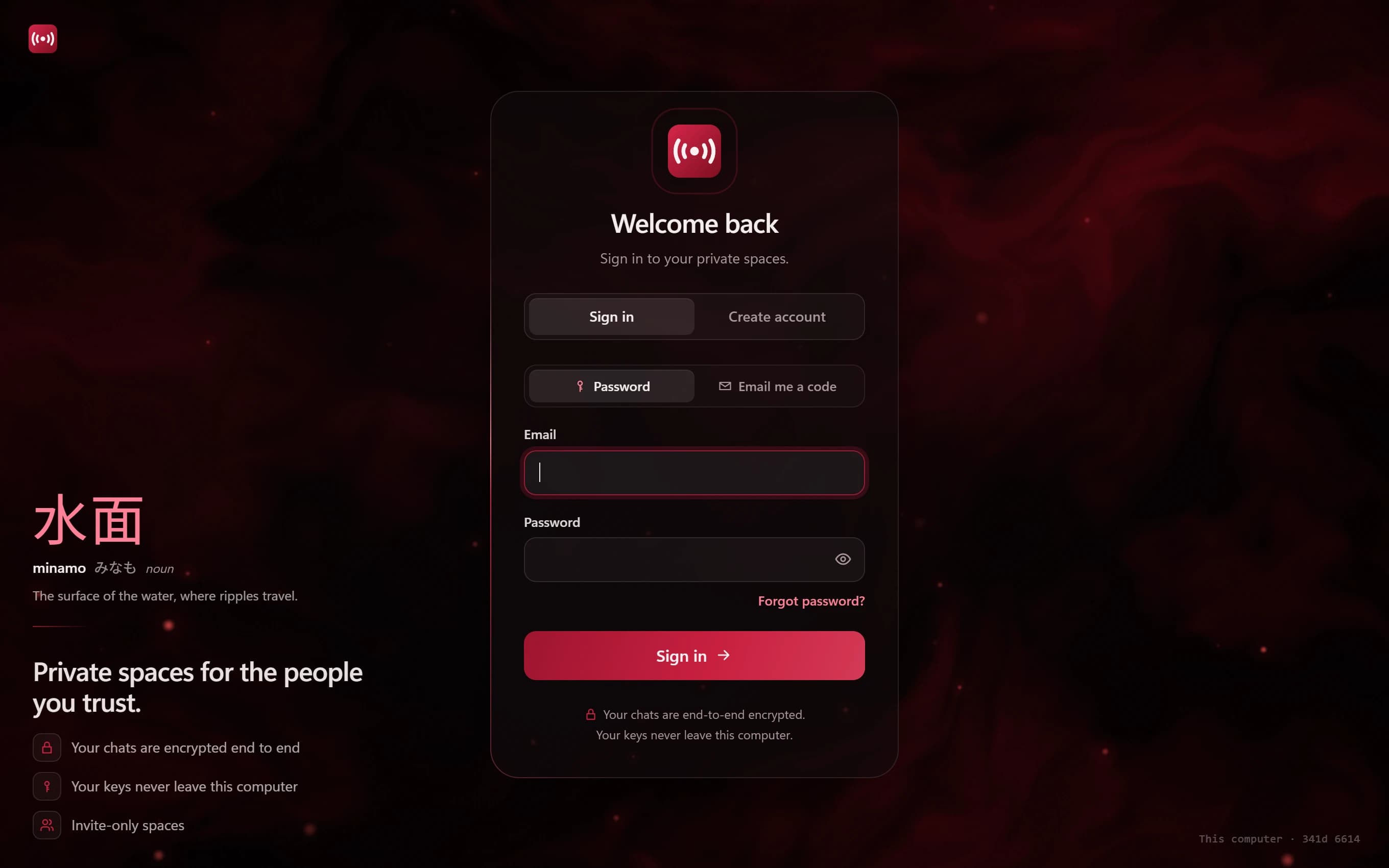
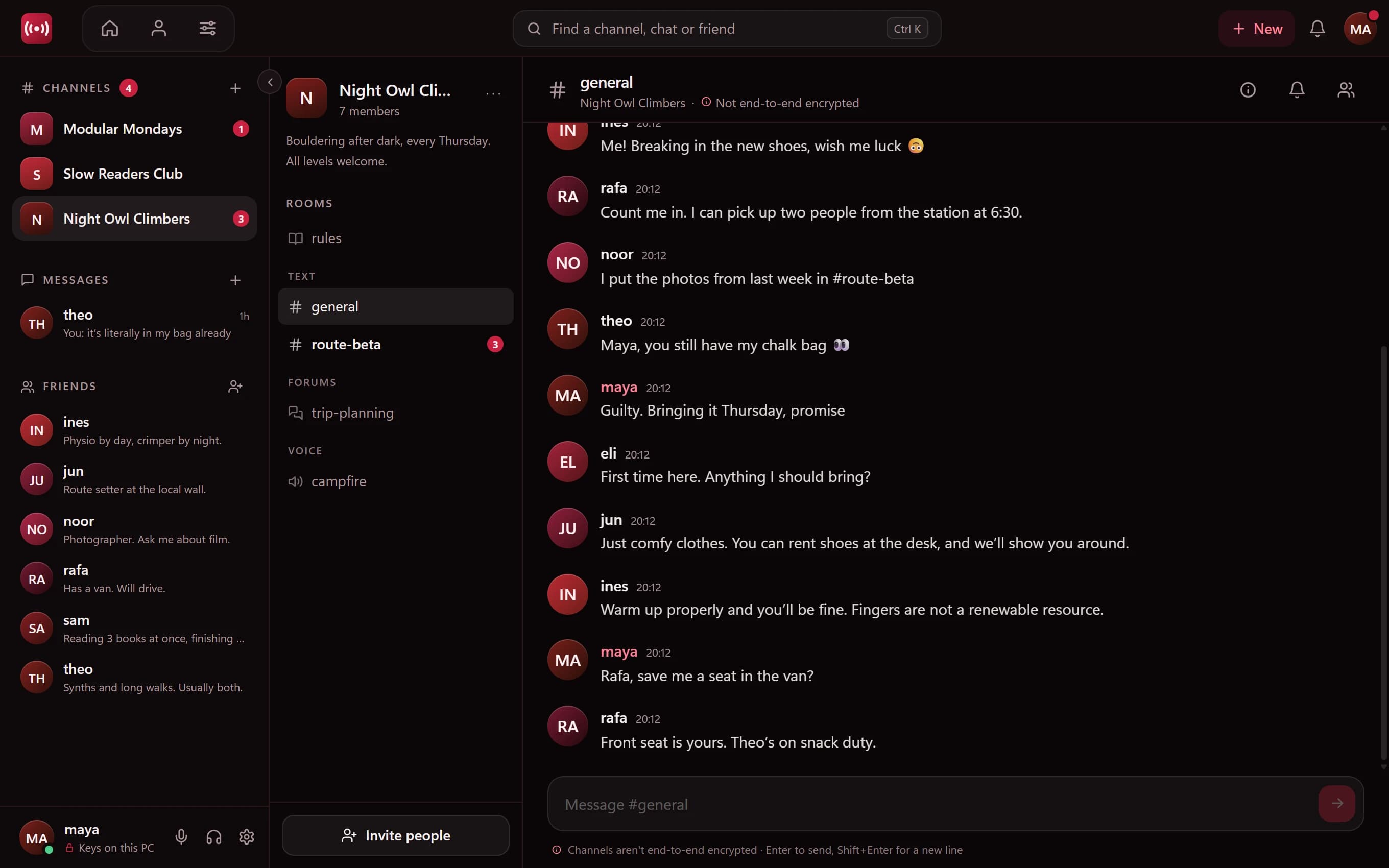
Each theme recolours the whole app, from the sidebar to the buttons:
- Crimson, the default: deep reds on a dark background
- Ocean: deep blues instead of reds
- Midnight: Crimson's accents on true black, for dark rooms and screens where black really means off
- Monochrome: shades of grey, for the fewest distractions
How to switch
Open Settings → Appearance and pick a theme. Or press Ctrl+K, type "theme" and choose Change theme from the quick switcher, without leaving what you're doing.
Set per computer
Appearance settings describe how Minamo looks on the computer you're using, so you can keep Midnight on the PC in a dark room and Crimson everywhere else.
Calm by default
Whichever theme you pick, Minamo keeps the same calm layout: muted colours, clear type and nothing flashing for attention. Notifications live behind one bell, and mutes stay private.
Questions
What's Minamo's default theme?
Crimson: deep reds on a near-black background.
How do I change the theme?
In Settings → Appearance, or press Ctrl+K and choose Change theme.
Does my theme apply on every computer?
Appearance settings apply to the computer you set them on, so each computer can have its own theme.